When Should I Use This Method?
Use the Manual TXT Export method if:
You prefer not to use the OAI Publishing Profile method, or it is not suitable for your Alma configuration.
You require strict campus-level separation in a multicampus Alma (shared Institution Zone) environment.
You prefer snapshot-based exports instead of incremental publishing
If you are using the OAI Publishing Profile instead, please refer to the Alma Publishing Profile documentation.
One-Time Export Steps
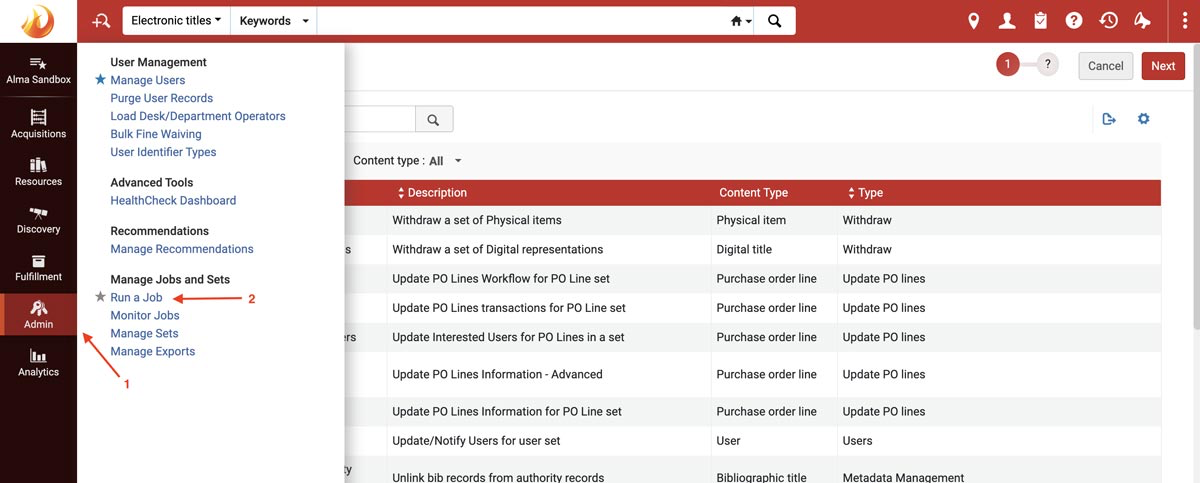
1. Go to Admin -> Manage Jobs and Sets -> Run a Job
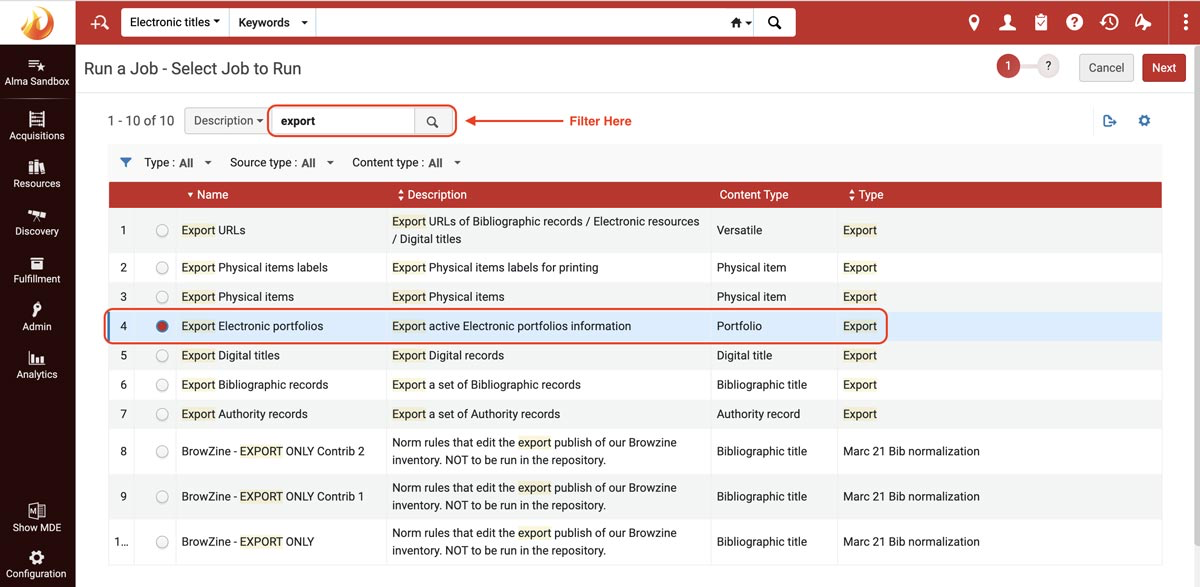
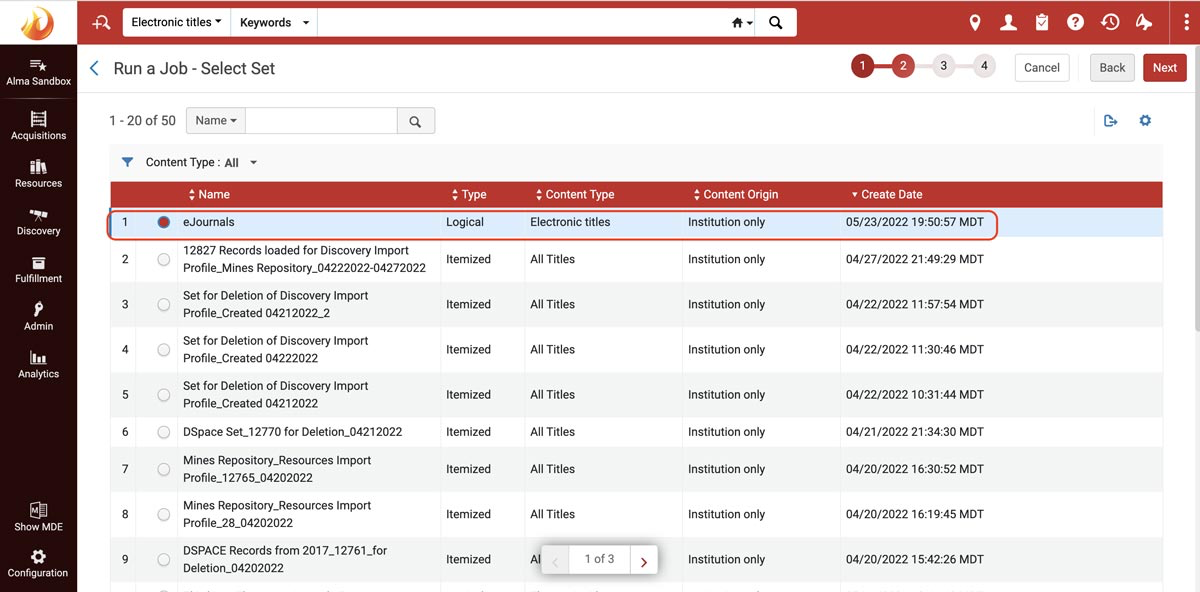
Select the logical set you created for this export.
Your set must include:
Material Type equals Journal
Multicampus or Shared Institution Zone (IZ) environments:
If you operate in a multicampus or shared Institution Zone (IZ) environment, your logical set must also include a campus-level filter, such as:
Available explicitly for equals [Campus Name]
or another locally configured campus ownership filter
This ensures only portfolios belonging to the intended campus are exported.
Contact Ex Libris if you do not see this option available.
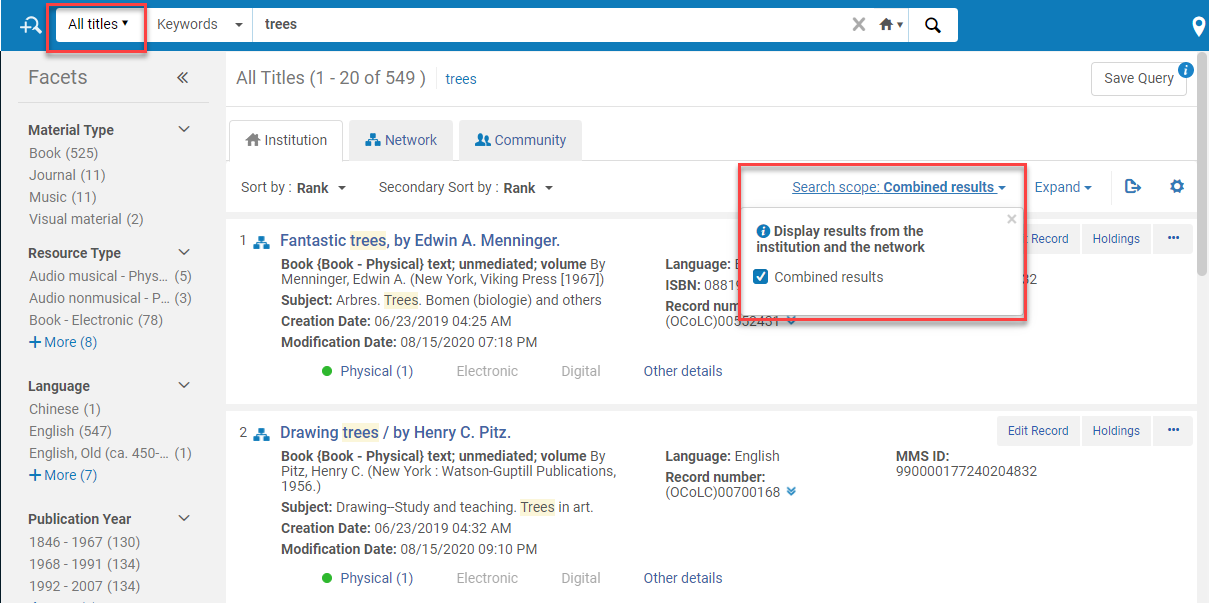
The example above shows a set defined at the Electronic Titles level. Consortial or multicampus institutions using the TXT method may instead define their set at the Electronic Portfolios level when institutional separation is required.
The TXT schema will generate a tab-delimited file. Ensure date fields follow full ISO format (YYYY-MM-DD) where available. Do not modify the delimiter format or header row generated by Alma.
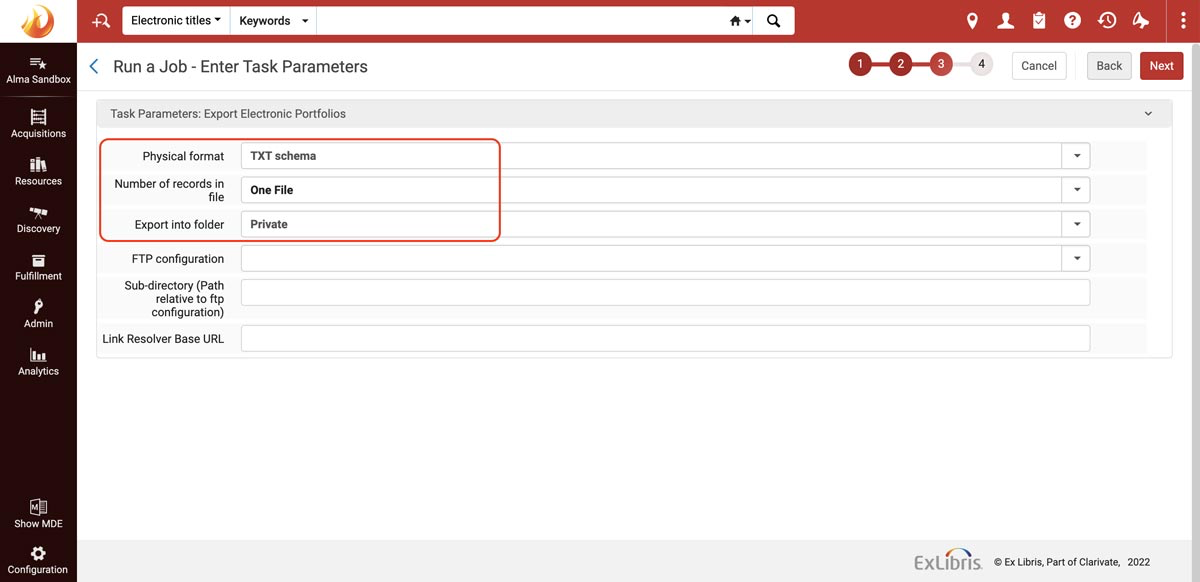
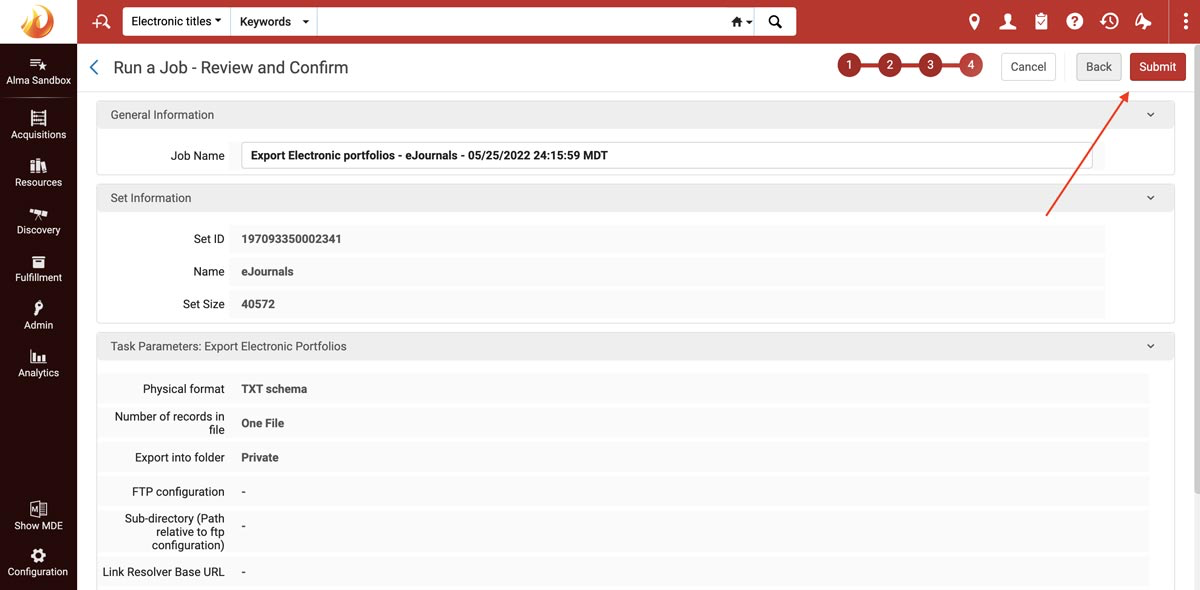
Do not modify column names or header structure before uploading the file.
For libraries using the manual TXT method, we recommend updating holdings monthly or whenever significant content changes occur. Subscribers may also request SFTP credentials to automate weekly updates.